

Introduction
When watching foreign language videos for work or study, subtitles are often essential. However, creating accurate subtitles usually involves multiple steps: transcription, sentence restructuring, translation, timing adjustment, and final export. Without the right tools, this process can be time-consuming and technically demanding.
SubEasy simplifies this entire workflow by integrating transcription, subtitle optimization, translation, and export into a single streamlined process. Below is an overview of how a complete subtitle workflow is typically handled inside SubEasy.
1. Importing Your Video or Audio Content
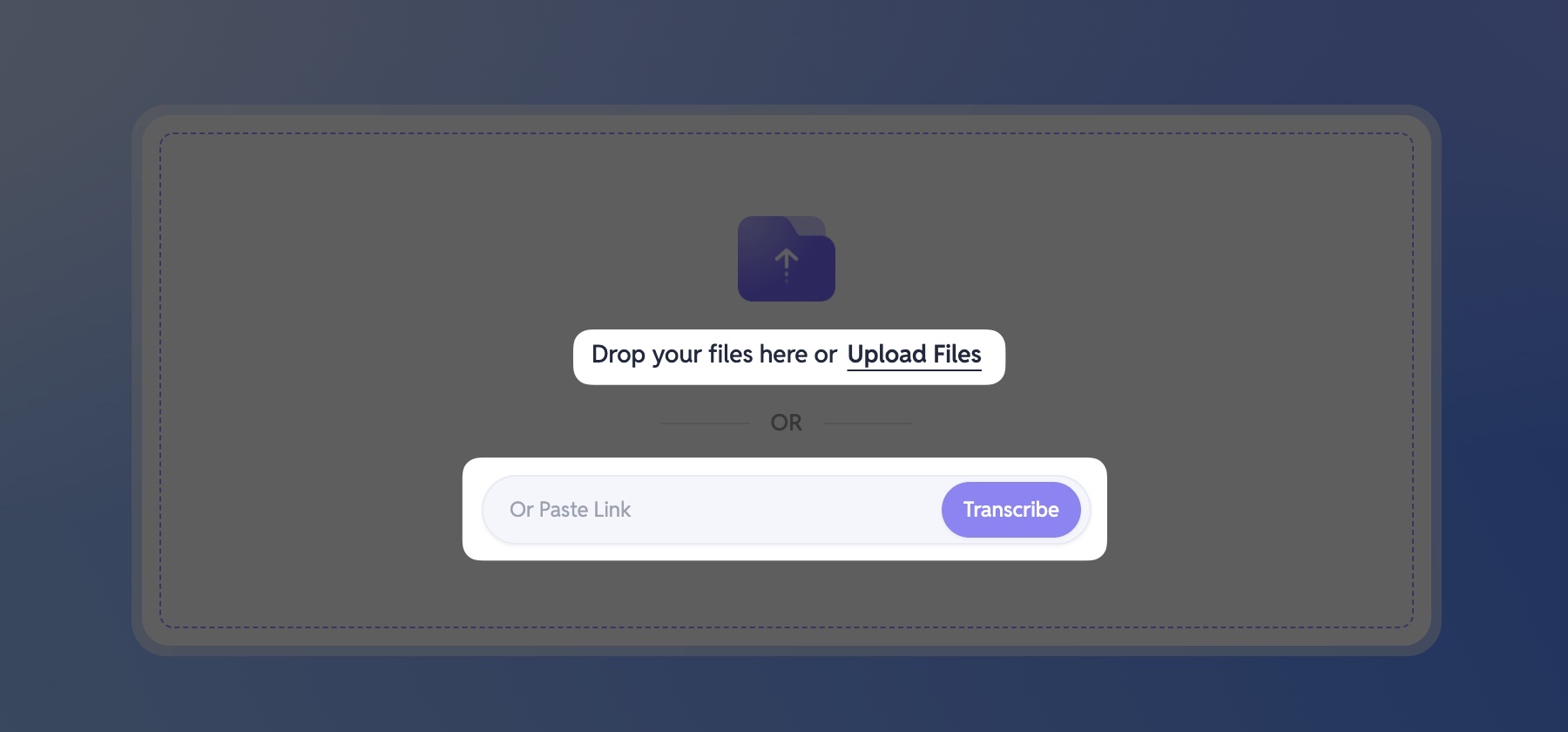
Every project starts with importing your source material. SubEasy supports both local uploads and online video links. You can upload video or audio files directly, or paste links from platforms such as YouTube or TikTok. SubEasy will automatically detect and load the media, allowing you to move straight into subtitle preparation.
2. Selecting the Appropriate Transcription Strategy
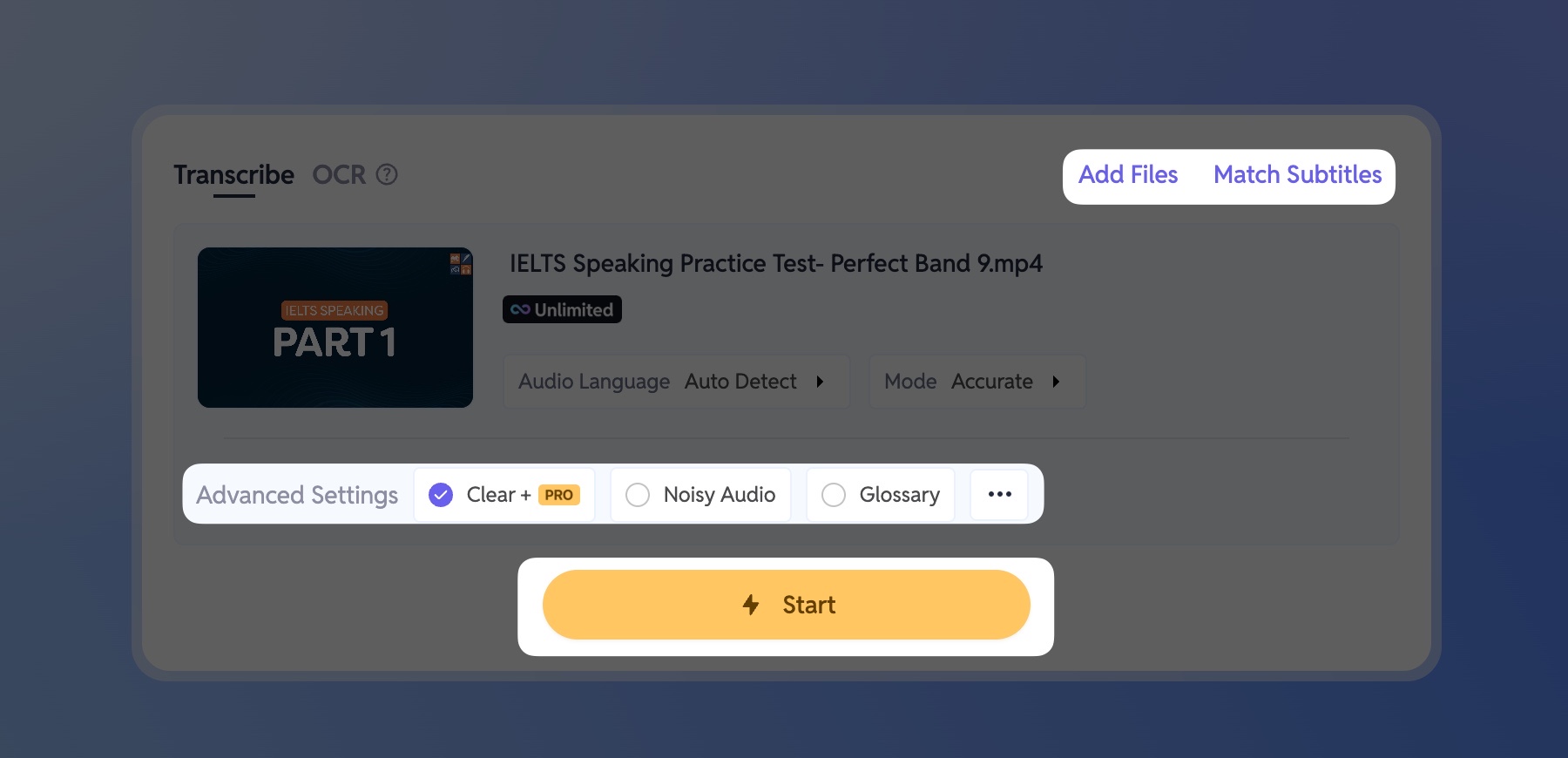
Before subtitles can be refined or translated, spoken content needs to be converted into text. SubEasy provides multiple transcription paths depending on your starting point.
If higher accuracy is required, members can enable Clear+ Recognition, which is designed to handle accents, noise, and complex speech more effectively. New users can experience this feature through a free trial.
For batch workflows, SubEasy allows multiple files to be added in a single session, making it suitable for longer projects or content series.
If subtitles already exist, the Match Subtitles option lets you skip transcription entirely and proceed directly to refinement and translation.
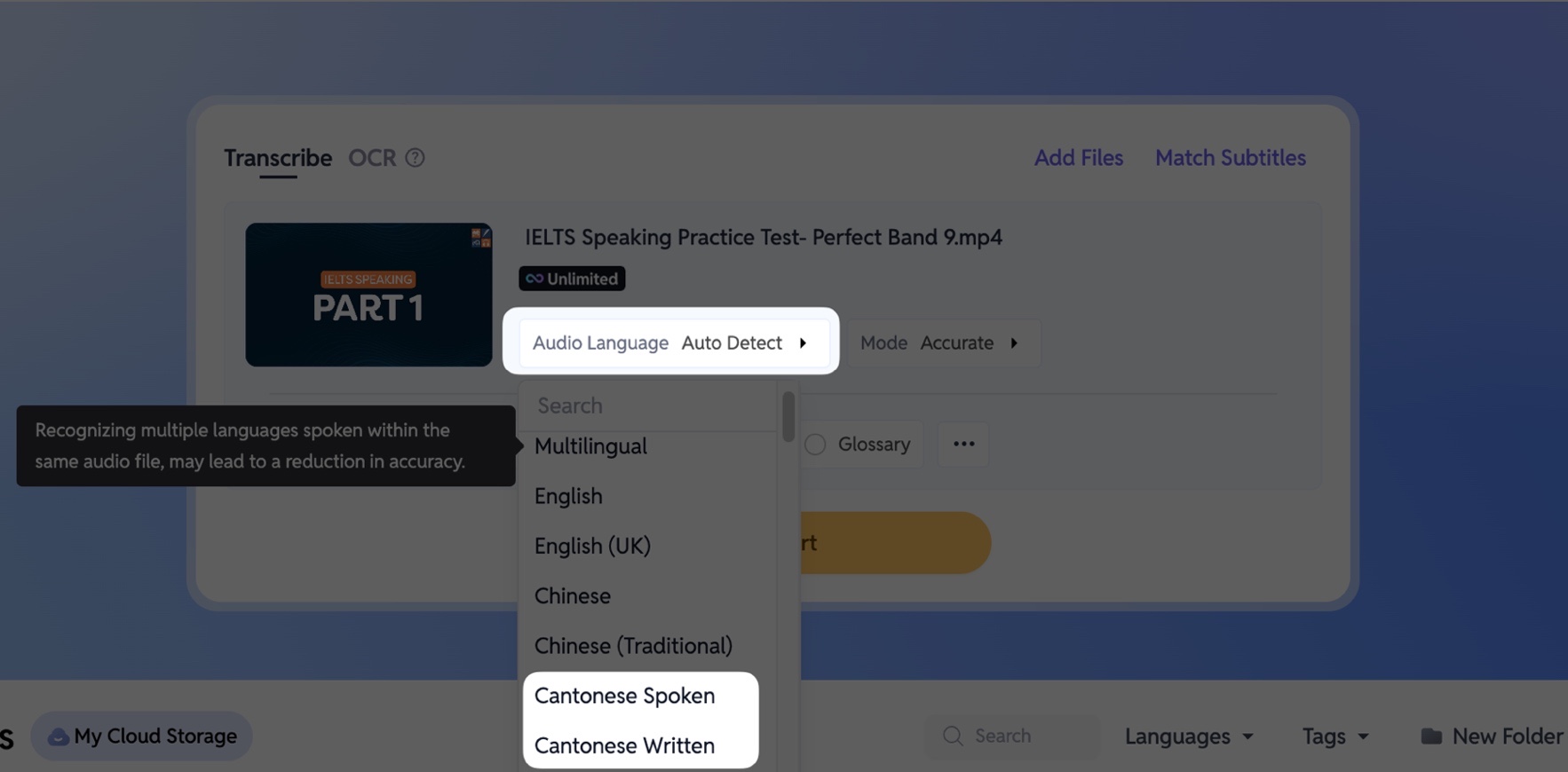
📌 For Cantonese content, SubEasy supports both Cantonese Spoken output (e.g., “唔係”) and Cantonese Written output (e.g., “不是”), allowing subtitles to match different audience expectations.
3. Optimizing Subtitle Readability with Sentence Reflow
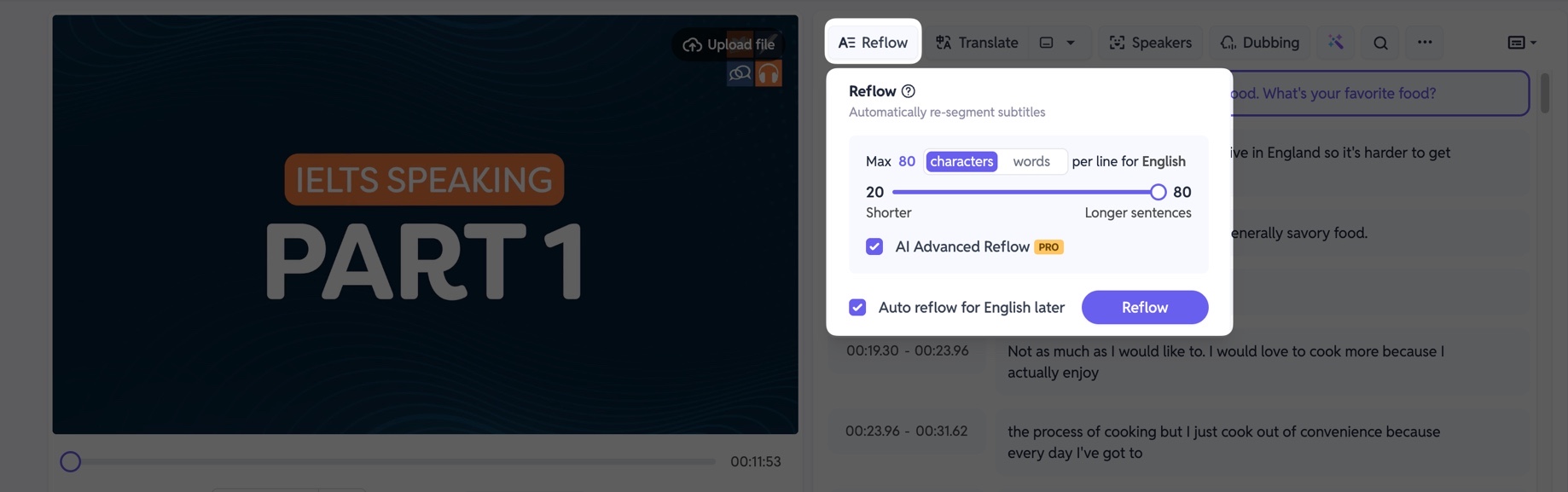
Accurate transcription alone does not guarantee readable subtitles. Spoken language often needs restructuring to match natural reading rhythm.
SubEasy’s Reflow feature automatically segments text based on semantic meaning, improving clarity and pacing. Advanced users can further enhance results using AI Advanced Reflow, which supports English, Chinese, and Japanese.
Recommended character limits per subtitle segment:
- Chinese: ~20 characters
- English: ~80 characters
This step ensures subtitles remain comfortable to read before translation begins.
4. Improving Accuracy with AI Polishing
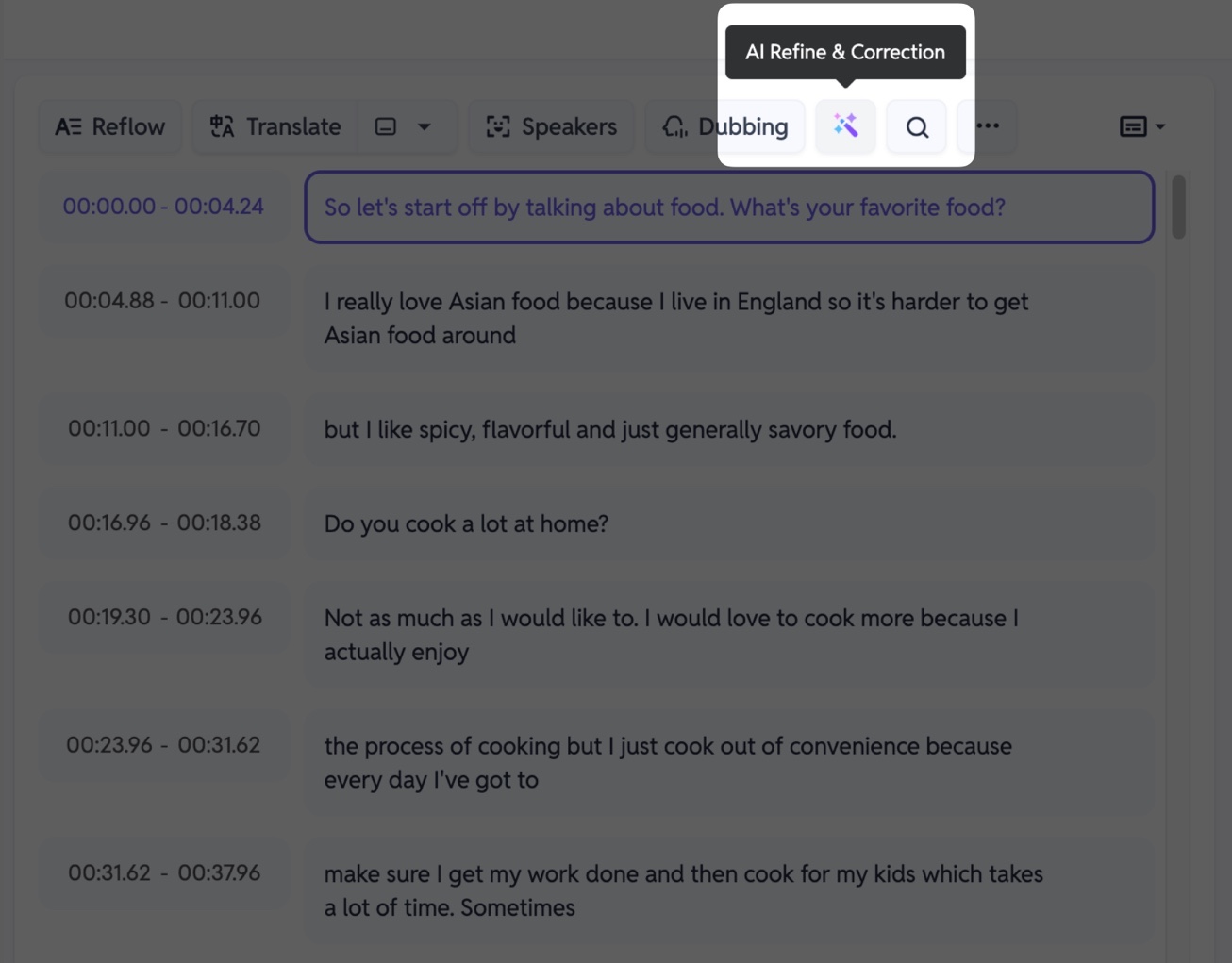
Languages often contain homophones and context-dependent meanings, which can introduce errors during transcription. To address this, SubEasy offers AI Refine and Correction, which reviews subtitles in context and corrects potential mistakes.
This step improves linguistic accuracy and helps subtitles sound more natural, especially for professional or educational content.
5. Choosing the Right Translation Mode
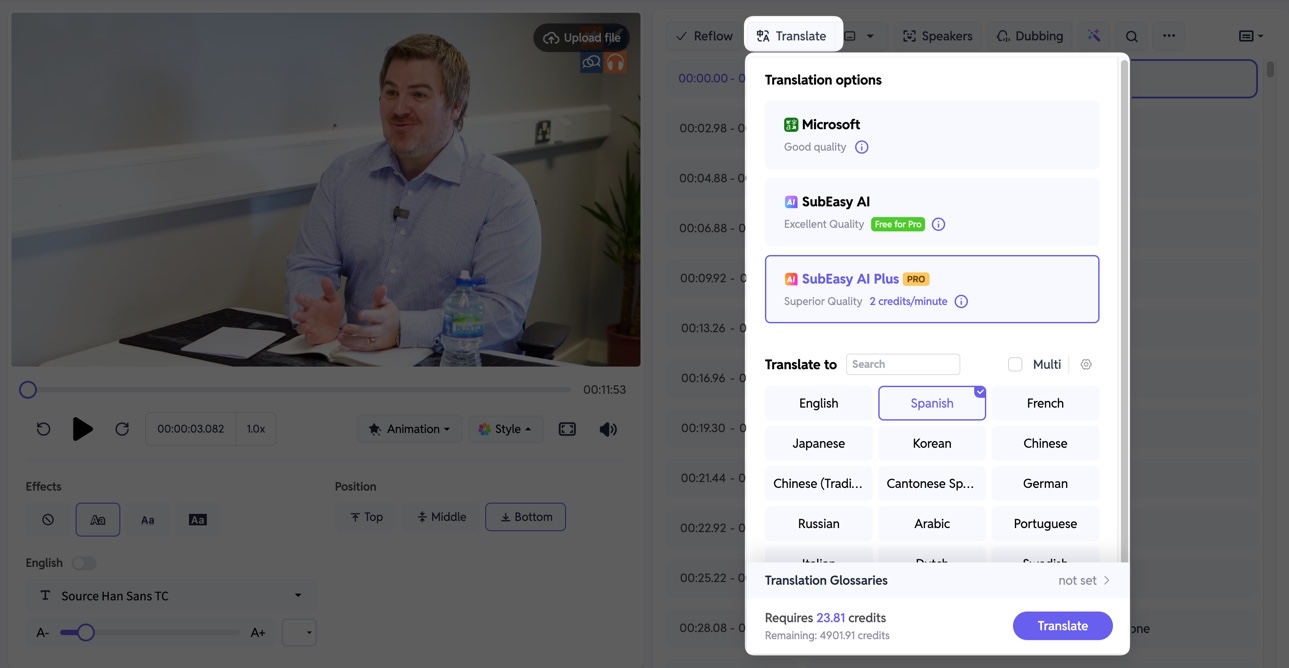
Once subtitles are properly structured and refined, translation can begin. SubEasy provides multiple translation options to balance speed, cost, and quality:
- Microsoft Translation: A free option suitable for basic understanding, though quality may be limited
- SubEasy AI Translation: High-quality translation using large AI models, suitable for most professional use cases
- SubEasy AI Plus Translation: Professional-level translation quality for content with higher accuracy requirements
6. Reviewing Subtitles in Context
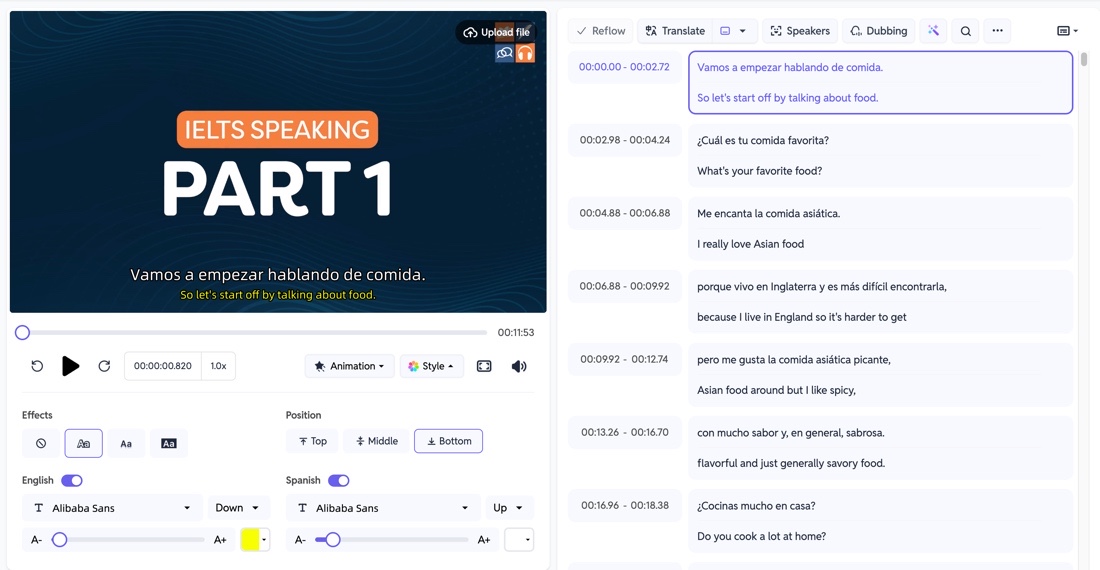
Subtitles should always be reviewed alongside the video. SubEasy’s preview interface synchronizes playback with subtitle highlighting, making it easy to evaluate timing, wording, and flow as the video plays.
7. Editing Subtitle Content
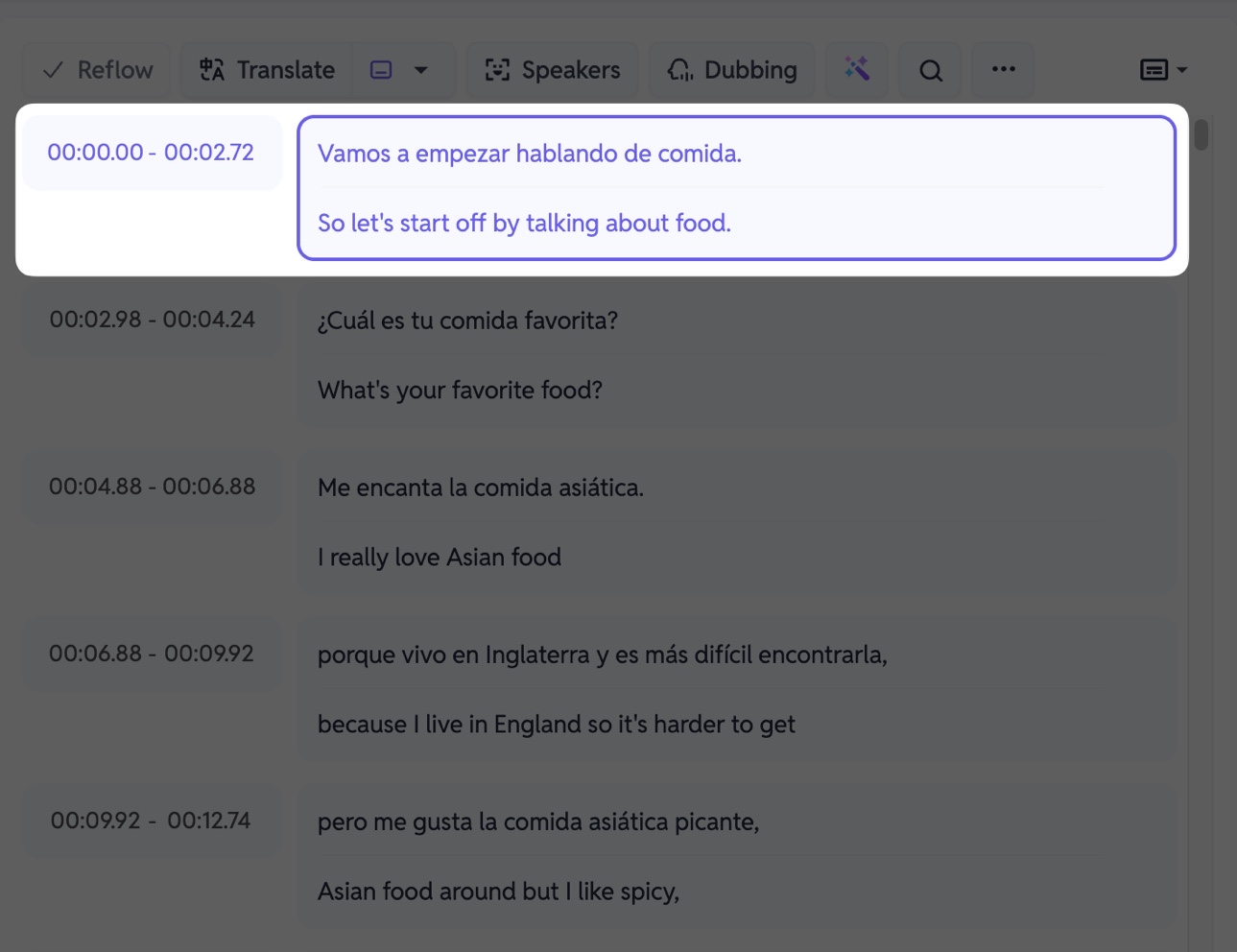
Individual subtitle segments can be edited directly, allowing you to refine wording, correct translation issues, or add missing context where necessary.
8. Fine-Tuning Subtitle Timing
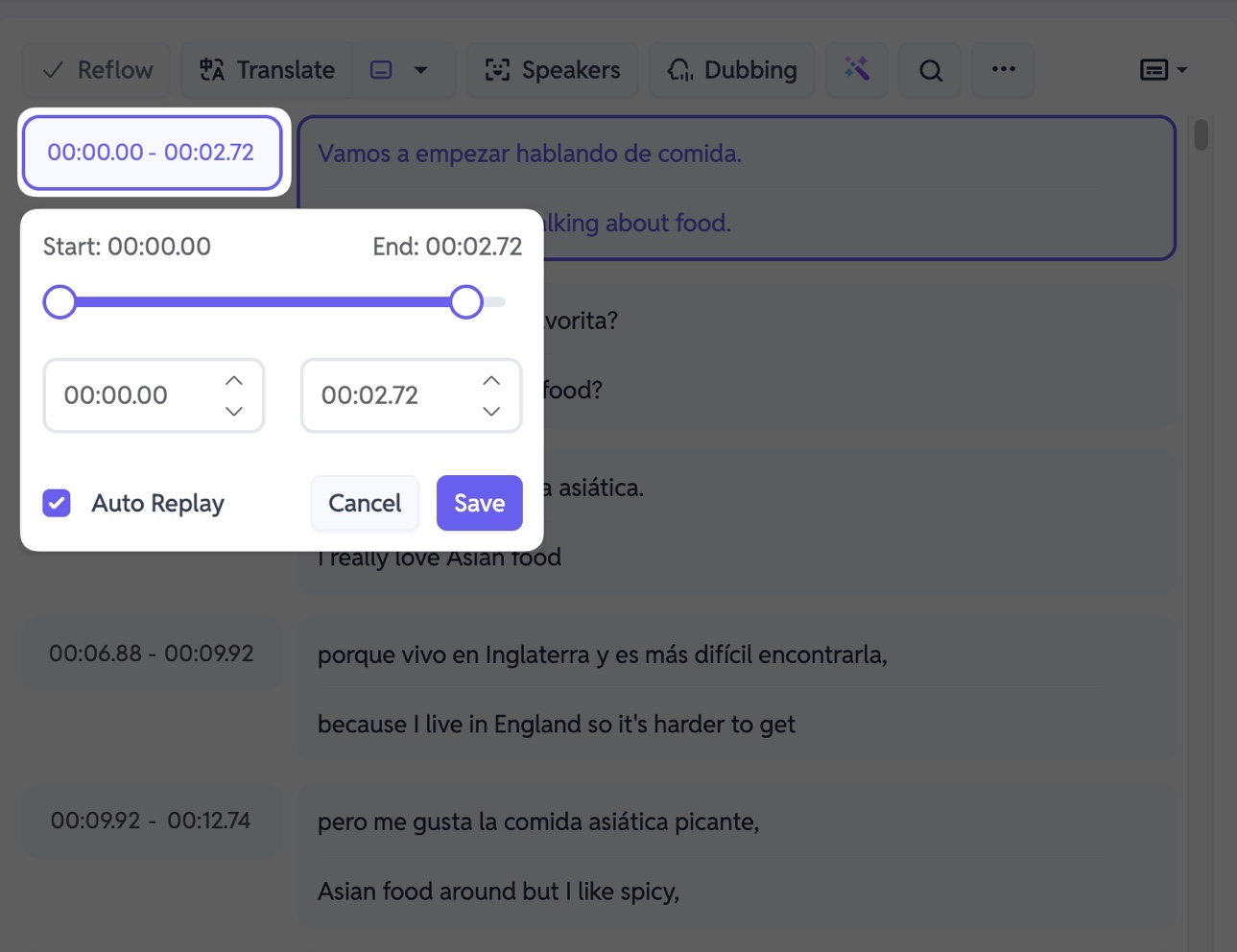
Precise timing adjustments help ensure subtitles align naturally with spoken content, improving readability and viewer comprehension.
9. Managing Individual Subtitle Segments
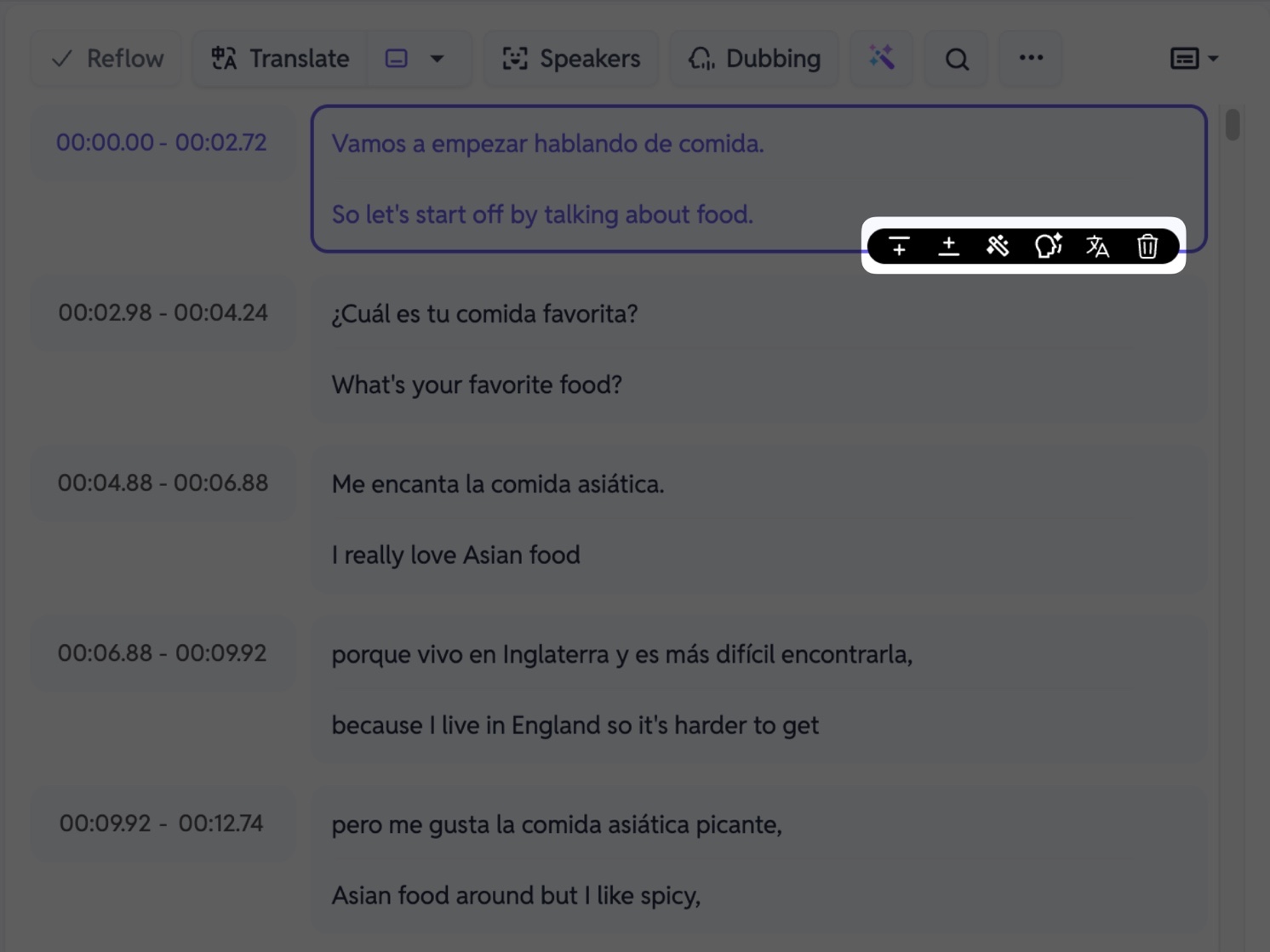
In real-world projects, subtitles often require localized adjustments rather than full reprocessing. SubEasy allows each subtitle segment to be managed independently, giving you fine-grained control without affecting the entire subtitle track.
For any individual subtitle, you can access a dedicated action menu to:
-
Insert a blank subtitle before the current one
-
Insert a blank subtitle after the current one
-
Polish or refine only this subtitle
-
Generate AI voiceover for this subtitle
-
Re-translate this subtitle independently
-
Remove unnecessary or redundant subtitles
-
You can also merge a subtitle with the previous one simply by pressing the Backspace key at the start of a segment.
This level of control is especially useful when you need to highlight specific dialogue, clarify technical terms, or adjust pacing for key moments in the video.
10. Exporting Subtitle Files
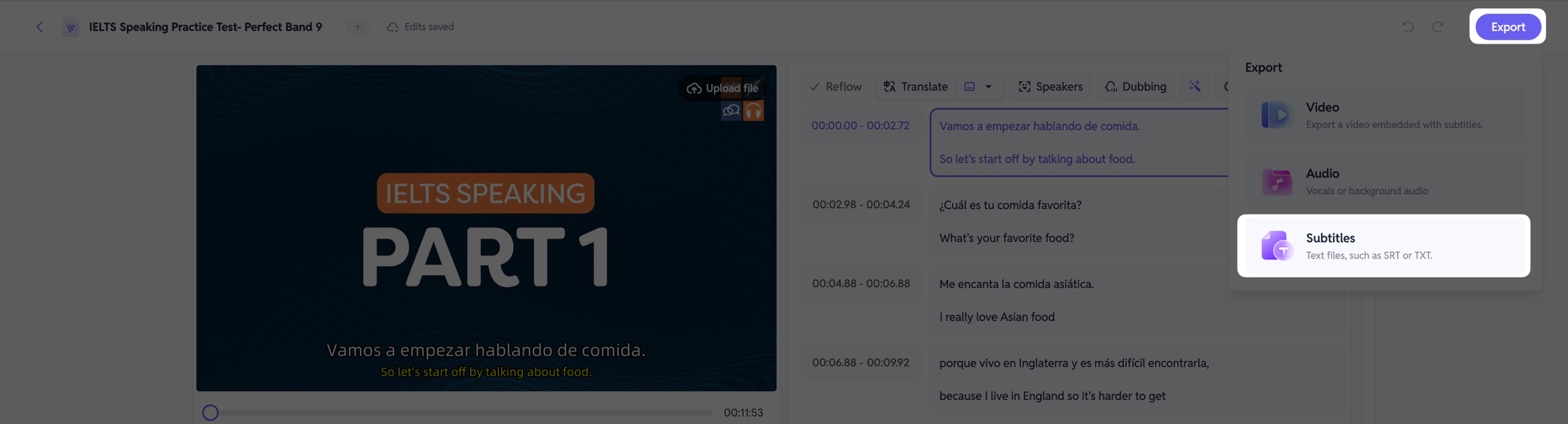
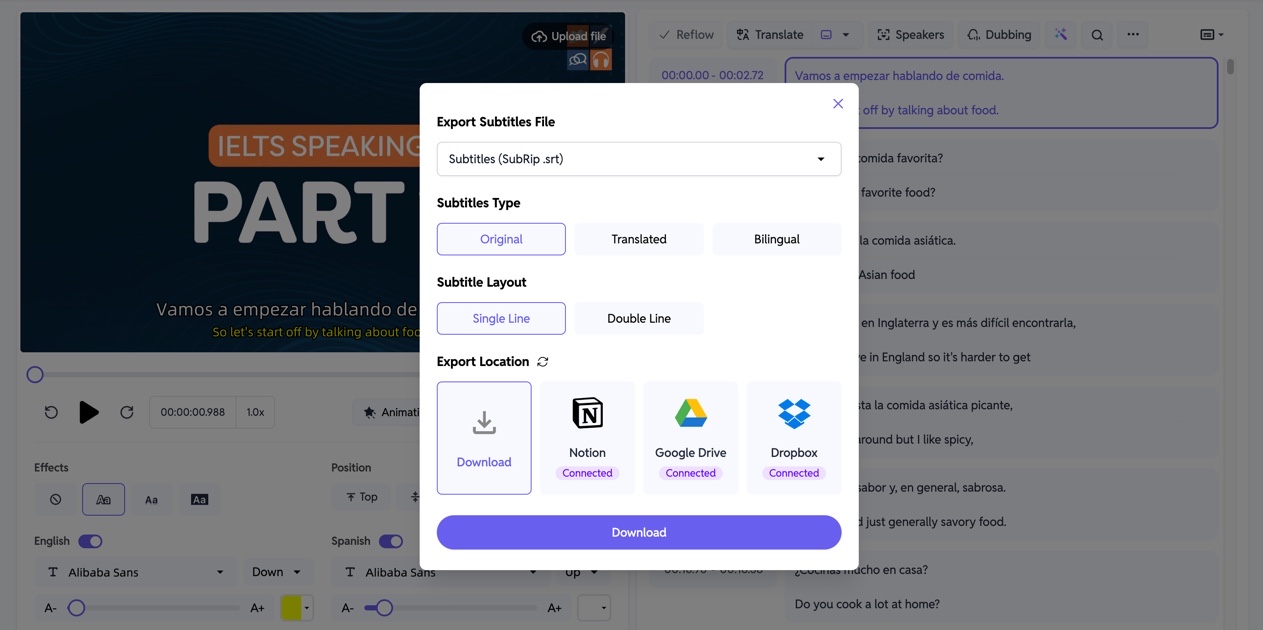
Once subtitle editing and timing adjustments are complete, subtitles can be exported independently as text files. This option is ideal if you plan to continue post-production in external video editing software.
SubEasy supports multiple subtitle formats, with SRT being the most commonly used. You can choose to export:
- Original language subtitles
- Translated subtitles
- Bilingual subtitles
This flexibility allows subtitles to adapt to different editing workflows, publishing platforms, or audience needs.
11. Customizing Subtitle Appearance
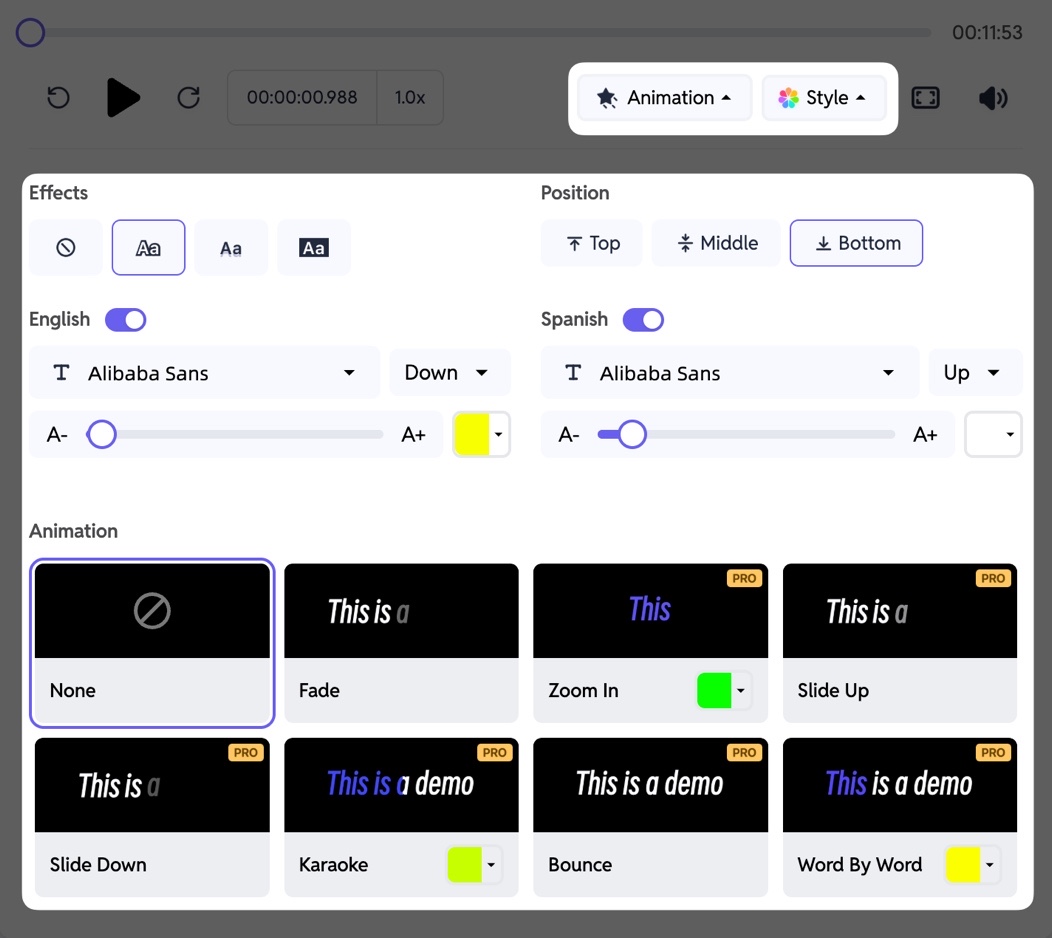
If you choose to export the video directly from SubEasy, you can customize how subtitles appear on screen. SubEasy provides a wide range of styling options, including:
- Font type and size
- Text color and background
- Subtitle position
- Animated subtitle effects
These options help ensure subtitles are not only readable but also visually consistent with your content style or platform requirements.
12. Exporting the Final Video
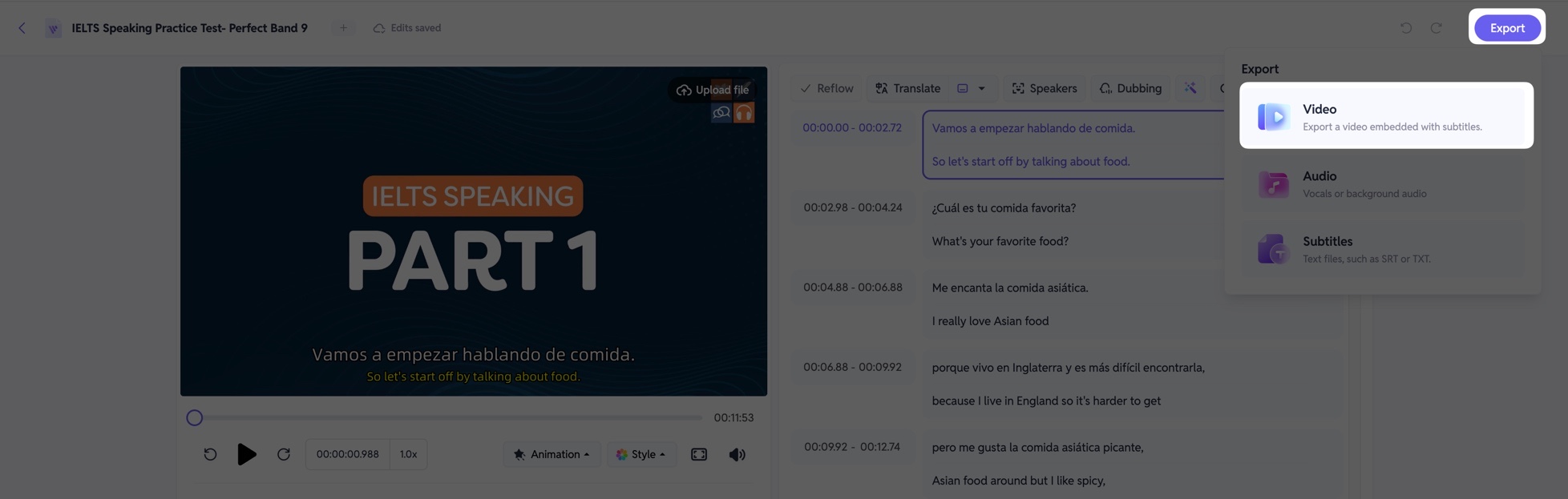
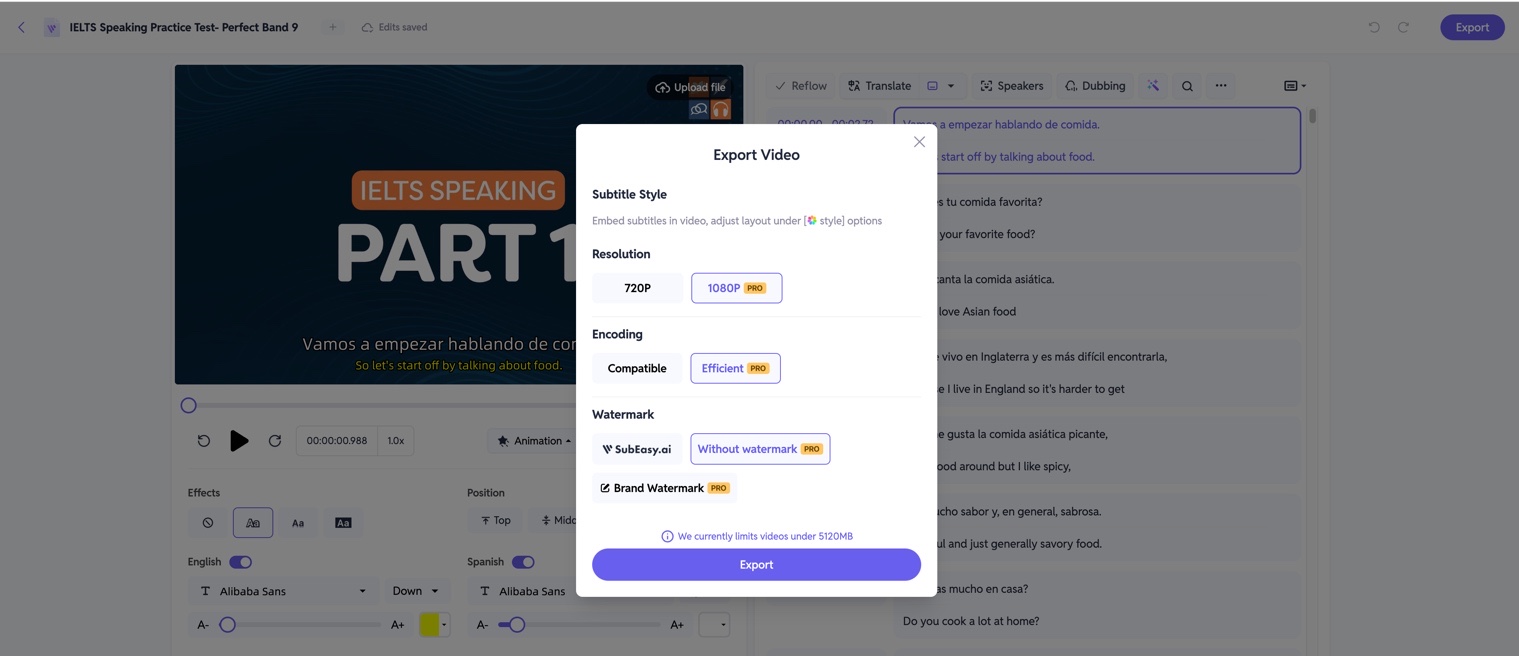
After subtitles are finalized and styled, the final step is exporting the completed video. Output resolution and watermark settings depend on your plan and the original video quality.
Free users can export videos with a watermark and limited resolution, while higher-tier plans support higher resolutions, including up to 4K, when the source video allows. This ensures your final video is suitable for both professional distribution and everyday sharing.
Getting Started with SubEasy
This workflow overview demonstrates how SubEasy brings transcription, subtitle optimization, translation, and export into a single platform. It is designed to help you create accurate, readable subtitles efficiently for multilingual video content.
Visit SubEasy.ai to get started.